Summary
-
Windows 11 Experimental adds four new touchpad options to speed up gestures.
-
These include auto scrolling, accelerated scrolling, pan/zoom speed, and one-finger vertical scrolling.
-
Join the Experimental Insider channel to try them out, but expect bugs and report issues.
Touchpad gestures can be a lifesaver if you’re using Windows 11 on a laptop. With just the swipe of a finger (or two or three), you can perform tasks that would otherwise require the use of a mouse. They are great for power users who want to get things done faster.
It turns out that Microsoft knows how useful these handy gestures can be. The company has added four more Touchpad variants to its Experimental preview build, and at first glance, they look like must-have additions for anyone using a laptop.
Windows 11 is getting four new Touchpad options
They should save your fingers from overwork

as announced Windows Blogsthe company breaks down what we can expect to see in the preview channels. If you’re used to seeing the old build patch notes pages, Microsoft has since decided to combine all the changes it’s implemented in both the Experimental (the new Dev channel) and Beta channels into one article. So if a feature appears in both, the company only needs to list it once.
This week’s update isn’t that big, but it’s very useful. It comes with two tweaks; first, if you’re using a Windows Insider build in a K-12 environment, you can now upgrade from Windows 11 Home to the Pro Education edition at no additional cost. If you’re not using Windows in education, the second feature should be more interesting: Four new Touchpad options have been launched in the Experimental section.
Here’s what they do:
Scroll / zoom speed: control the base speed for these gestures
Automatic scrolling: scrolling continues indefinitely without lifting your fingers. Activate by moving your fingers closer to the edge of the touchpad, or by holding them still and pressing harder (requires support).
Accelerated scrolling: scrolling repeatedly increases their speed, allowing long documents to move quickly.
One-finger swipe: swipe vertically with one finger, starting from the left or right side of the touchpad.
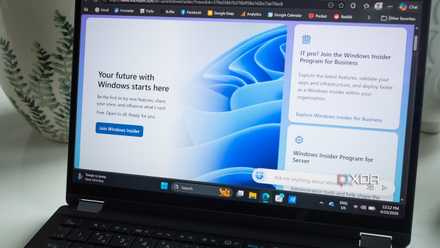
If you want to try out these new tools, be sure to head over to this page Windows Insider page and sign up for the Experimental branch. Just be willing to report bugs; this is an experimental setup.