
Windows 11 Pro costs more than Home Edition of Windows, but many people who own Pro are missing out on some of its coolest features. They’re not flashy, but they provide a very noticeable improvement over the Home editions, especially if you want to experiment with apps or customize your PC.
Windows Sandbox
Test apps safely without putting your host system at risk

Windows Sandbox is one of the most useful and overlooked features in Windows 11 Pro. Windows Sandbox allows you to create a temporary Windows virtual machine that is completely separate from your main Windows 11 installation. It starts with a clean slate every time and everything is erased when you close it.
This is useful in many situations. I often download and test new apps, and I’ll often run an app inside Windows Sandbox when I’m not sure how secure it really is. first to see how it moves and what it does. If everything looks fine, after I’ll move it to my main Windows 11 PC for more extensive testing. It provides a safe, easy way to test apps without taking any risks.
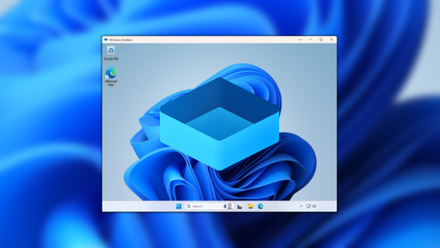
Additionally, since Windows Sandbox always starts from a clean slate, it’s a great troubleshooting tool. Sometimes a program doesn’t work properly and it’s not immediately clear why. The sandbox allows me to eliminate confounding factors when troubleshooting, such as the countless tweaks I’ve made to my own system, which helps me narrow down the list of potential causes.
Sandbox is a great feature to use if you often need to debug experimental apps or download and test apps that you don’t fully trust. It was the feature that made me want to upgrade from Home to Pro.
Bitlocker
You can encrypt external devices and have more control
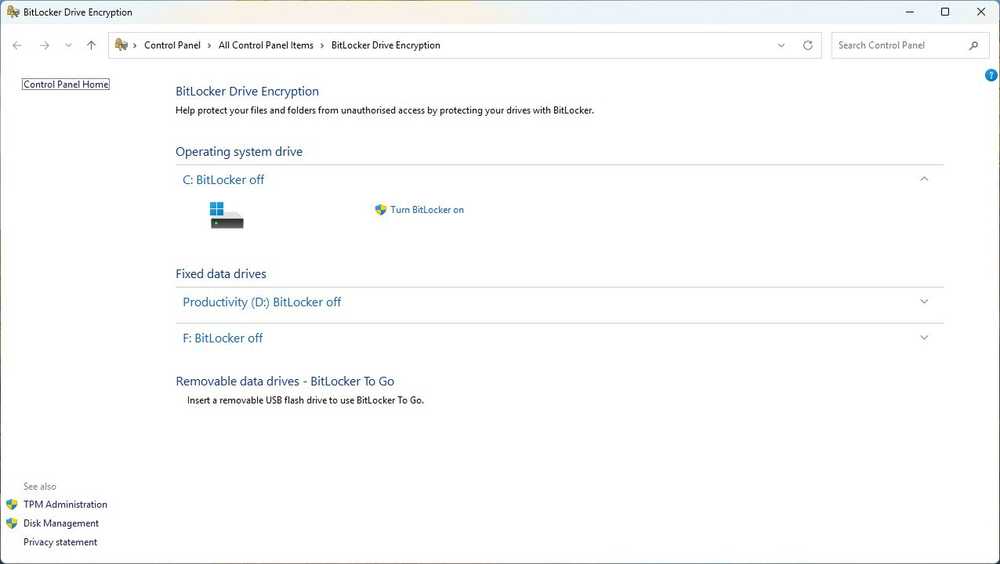
Windows 11 Home PCs have basic device encryption, but Windows 11 Pro gives you the full BitLocker experience, which is a big upgrade if you like more control or want to use it with external devices.
I use BitLocker to encrypt my system drive so that someone can’t just remove the SSD and plug it into another machine and read all my files. This is especially important for laptops, as they are easier to lose or steal.
The real advantage of the Pro is that it goes beyond the internal drive. With BitLocker To Go, you can encrypt external drives and USB drives. I use it whenever I carry any kind of sensitive data on an external drive. If I happen to lose a driver at an airport, my documents aren’t sitting there for anyone to open.
Pro also has more control over how encryption is handled. I can choose my unlock methods, manage protected drives, and configure behavior more precisely than I can with basic encryption. Simply make sure you keep your recovery key in a safe place. Encryption protects you from others, however If you lose your recovery key, it will also block you immediately. By default, your recovery key will be stored in your Microsoft account, but printing a hard copy or saving it in a secure password manager is also a good option.
Hyper-V
The best virtual machines on Windows
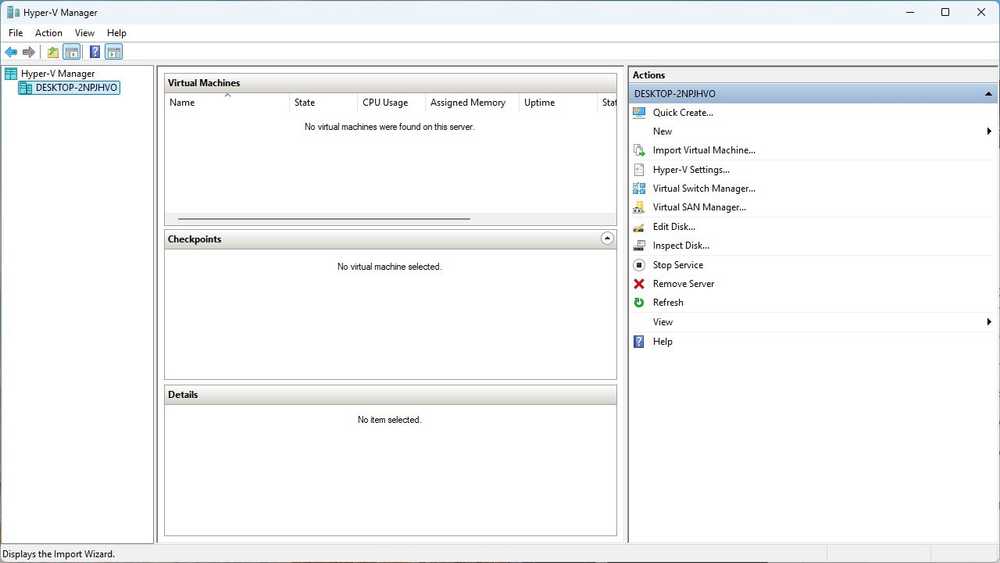
Windows Sandbox is great for a quick disposable VM, but if you need something more permanent, the full Hyper-V management software is great.
Hyper-V allows you to run fully virtualized operating systems directly on your computer. I’ve used it to install separate copies of Windows and more Linux distributions than I can count. Unlike a sandbox, these Hyper-V VMs are persistent, meaning they retain all their files, programs, and settings until you delete them.
This makes Hyper-V ideal for long-term projects. You can use it to create clean environments for coding, test software deployments, or experiment with Linux deal with the annoyance of partitioning a drive or dual booting. I usually keep multiple VMs for different tasks. One is a Linux daily driver that I use when I need a Linux system, one is for risky experiments, and the other is for testing different Linux distros.
Because Hyper-V is built into Windows, you don’t need to rely on third-party virtualization platforms for most everyday tasks. You can allocate memory, add virtual hard disks, and create checkpoints that act as backups.
Hyper-V has a bit of a learning curve, and you’ll need enough RAM (32GB or more) and plenty of storage to keep things running smoothly. Still, it’s one of my favorite tools in Pro, and if you’re running VMs on Windows, it’s worth checking out.
Group Policy Editor
No more registry hacks
The Registry is a powerful tool, but it is not at all user-friendly. I often see registry fixes offered online with few benefits and a questionable security profile. Unfortunately, if you’re on Windows 11 Home, you don’t really have much of a choice—whatever the risk of modifying the registry, it’s often your only choice.
Windows 11 Pro offers a better alternative: the Local Group Policy Editor.
Instead of digging through endless registry keys, you can use this structured interface to change advanced settings. You can use it to control update behavior, disable annoying consumer features, and tweak parts of the OS that are usually hidden.
For the home user, this is pretty useful when you want Windows to behave a certain way, but the default Settings app doesn’t give you the option. On the contrary loading random REG files or by copying the instructions from the forum, you can find the setting in Group Policy, read exactly what it does, and turn it on and off.
It is also very easy to return. If the policy causes a problem, I can simply set it back to Not Configured instead of trying to remember which specific registry value I changed six months ago. You still shouldn’t go into the Local Group Policy editor and change things carelessly, but it’s a safer and more organized way to customize your system. For anyone who likes to push Windows beyond the basics, this is one of the Pro’s most practical advantages.
Pro’s features are also great for home users
Despite its name – Windows 11 Professional Edition – most of the features of Windows 11 Pro are also useful for most home users. At some point, everyone has to download a bit of questionable software from the internet, and Sandbox can help you out there. Everyone sometimes they just wish they had a little more control over their PC’s settings, and it’s hard to beat Local Group Policy Editor for that.
BitLocker is another feature that anyone can benefit from, even if they don’t see a ton of use every day. Encrypting your portable drives costs nothing and offers a huge security benefit.
Even if you don’t use them right away, there’s a good chance you will once you have them to find use for them.



