

The Windows taskbar perfectly positioned to serve as a productivity center, but it feels criminally underutilized. The Start menu feels like a way for Microsoft to push their apps, the widgets feel like nothing more than a distraction, and I still manage to click on the wrong thing when looking for items in the system tray.
However, WindowSill is a program that elevates the taskbar experience to something that feels like it ships with Windows. And it completely changed how I use my taskbar today.
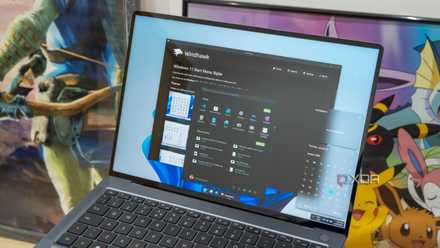
What is WindowSill?
A command bar that makes your taskbar more useful
WindowSill’s developer describes it as a productivity tool that helps those who struggle with context switching. The application creates a command panel that sits above your taskbar and provides a number of shortcuts and utilities.
These utilities are provided through extensions that you can enable or disable. Some of the default extensions that come with the app include image resizing and resizing, media control, clipboard history, currency conversion, short-term reminders, and upcoming appointments.
Short-term reminders and calendar events integration are some of the app’s best productivity features, as you can set them to trigger full-screen notifications. Although the integration with Google Calendar doesn’t currently work, I was able to sync my Outlook calendar with WindowSill to get appointment reminders.
The premium plan also lets you use artificial intelligence to analyze and rewrite content without copying and pasting text into a new window.
Windowsill makes certain workflows much easier

While its AI features are what draw some users to the app, my favorite WindowSill tools are the ones that save me time in my daily workflow. For example, the image resizer tool makes it incredibly easy to resize an image without having to open a separate app. It even works faster than that PowerToys Image Resizer tool.
With WindowSill, I can simply drag an image onto the command bar and then select the resize option. I can then enter the new size I want for the image and whether or not I want it to retain its current aspect ratio. WindowSill then exports the resized image to the same folder. You can also use the tool to rotate or compress the image. This has saved me a lot of time on some of my recent articles, as I no longer have to open an image editing program to resize images.
WindowSill also saves time on my clipboard history and currency conversions. I can technically access my clipboard history Win + V shortcut on my keyboard, but the clipboard icon in WindowSill gives me a useful shortcut where I can see my recently copied items, including screenshots.
With currency conversion I can set the target currency to South African Rand. Then when I select an amount in a foreign currency like $500, WindowSill provides a quick conversion in the command panel. I find this especially useful when calculating how much a client will pay, as it saves me the trouble of opening a search engine to convert the amount.
Customization lets you make Windowsill your own
Use as many or as few tools as you like

WindowSill has many customization features so you can make the tool work just the way you want it to. For example, I disabled the AI Writing and Analysis extension because I don’t use AI tools in my writing. You can also download additional extensions, including a screen recorder and built-in terminal.
You can also adjust the appearance of the bar and where certain shortcuts appear, which is a handy customization. You can even technically move the bar to another part of the screen if you don’t want it added to your taskbar.
It is this versatility that makes it such a useful program. It’s packed with features, but you can pick and choose what you want to use. If the extension doesn’t fit your workflow, you can simply disable it.
WindowSill forced me to focus on the taskbar again
I’ll admit that my taskbar is one of the most neglected elements of my home screen. It doesn’t have much use for me other than going to my system tray, doing the occasional search, and accessing my most used apps.
But WindowSill changed that. Now I have a reason to pay attention to the bar at the bottom of my screen: it’s full of useful tools and information. I sincerely wish Microsoft has received more notices from this and similar tools integrated similar Useful features in Windows 11. Instead, I have to rely on handy third-party tools and PowerToys, which can significantly improve the experience.



