As a developer, I constantly run into little problems that interrupt my flow. Formatting a mixed JSON response, Base64 decoding wired or fast regex is tested. The usual solution is to open a browser tab and paste your data into one of the countless online utilities that are often riddled with ads and questionable privacy practices.
This routine has worked for years, but it’s also ineffective. I came across it recently DevToysfree desktop software that combines dozens of everyday developer tools single offline toolbox. Instead of trawling between websites, everything runs natively on your Windows machine, and once it becomes part of your workflow, it’s surprisingly convenient.
Everything lives in one desktop app

At its core, DevToys is a collection of developer utilities packaged into a single desktop application. The app is free, open source, and available across platforms, but it feels especially at home on Windows, where it integrates cleanly with the system and launches instantly when you need it.
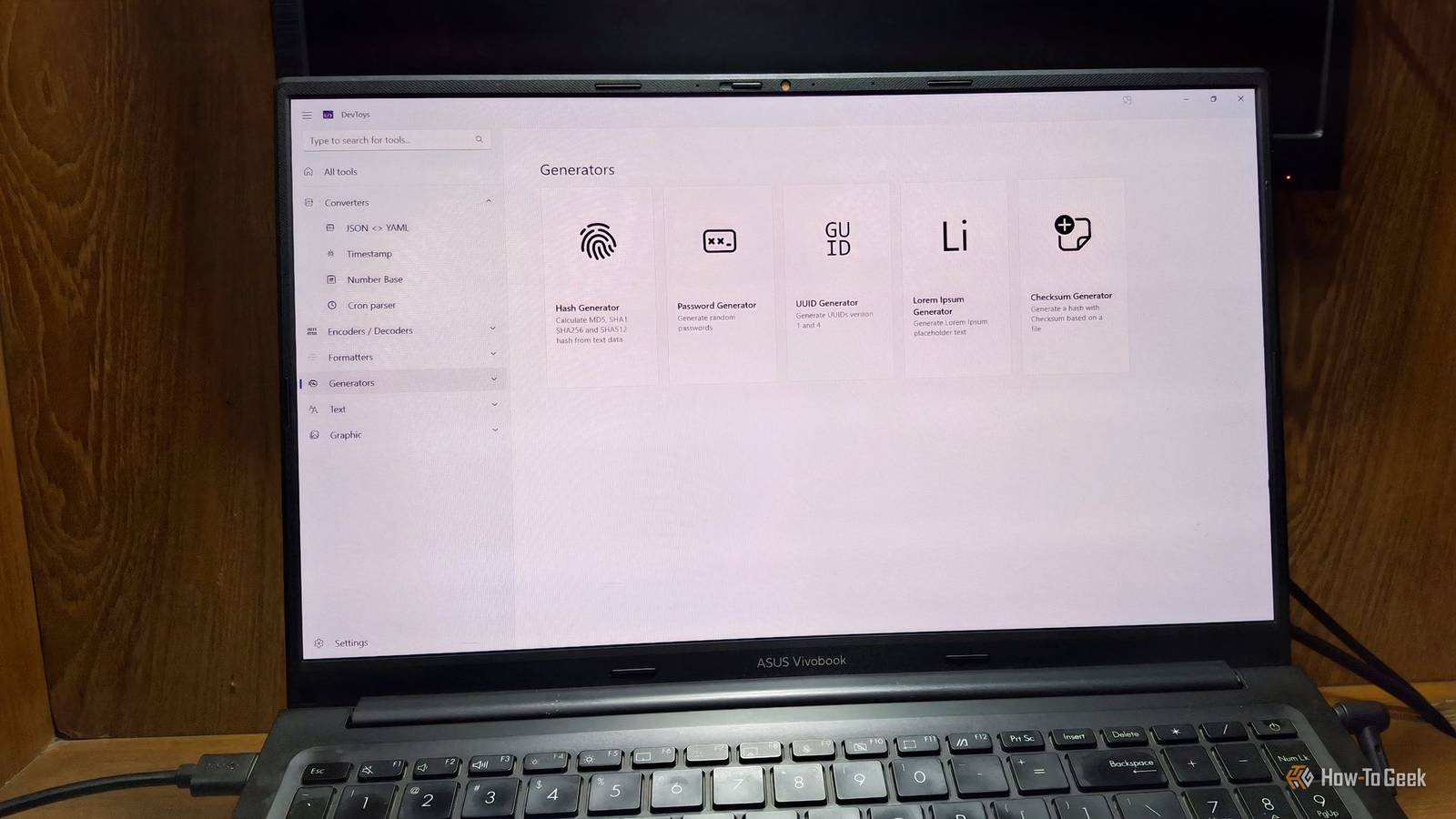
The interface is simple. The sidebar organizes tools into categories such as converters, encoders, formatters, generators, and testers. There’s also a search bar, so you can go directly to the tool you need instead of scrolling through the list. After opening the tool, the layout is usually divided into input and output panels, which makes it easy to paste data on one side and immediately see the result on the other.
More importantly, built-in tools cover a surprising number of everyday tasks that developers face. Need to format something? There are tools for JSON, SQL, and XML. Are you working with encrypted data? There are decoders for URL, GZip and even JWT. There are also handy utilities like a UUID generator, a password generator and a Lorem Ipsum generator for those on the go.
You’ll also find testing tools like regular expression testers and graphical utilities, along with SQL and XML formatters. None of these tasks are particularly complex on their own, but they are small tasks that come up repeatedly during development. Having them all in one place means you can tackle them in seconds without ever leaving your desktop.

Smart detection makes the app surprisingly fast
Automatically detect which tool you need

One feature that quickly stood out to me is DevToys’ Smart Detection. Instead of manually browsing through a list of utilities, the program can analyze what’s currently in your clipboard and suggest the most appropriate utilities.
When DevToys detects something it recognizes, it displays a small light bulb indicator next to the tools that match the buffer contents. The app can even automatically paste content directly into it, saving you an extra step. You need to enable this setting first.

In practice, this means that there is often no need to search for anything at all. You copy a piece of information, open DevToys, and the program already directs you to the correct tool. After using it for a while, this detection system makes the whole toolbox feel faster and more to work with.
The built-in utilities are great, but DevToys is also extensible

What makes DevToys more than a fixed toolbox is its extensibility. The default toolset is already useful, but you’re not limited to what comes with the software. It has a growing ecosystem of community-created extensions you can install to extend its capabilities.
There’s also an SDK available, meaning you can build your own tools if you have a specific workflow in mind. For developers who like to customize their environment, this opens the door to making DevToys more of a customized toolkit than just a collection of generic utilities. You will need some C# experience to learn this.
If you prefer to work in the terminal, there is a separate CLI version that brings many of these tools to the command line. This allows them to be integrated into scripts or automation workflows without relying on a graphical interface.
Some minor hiccups
Not deals, but annoying nonetheless
During testing, I couldn’t get the Base64 Text tool to work. Every time I opened that tool, the program crashed. I’m not sure why this is happening. There were records for the accident. But I could not understand anything from it.
Another tool that caused problems was the Markdown Preview tool. The first few times I tried to use it, the preview window was completely missing. This means that when I typed anything in the left pane, the app had to show the preview in the right pane. But that window wasn’t there and I couldn’t see anything. Finally, after opening and closing the program several times, the markdown preview finally appeared.

A little tool that saves a surprising amount of time
After spending some time with DevToys, there was no single feature that stood out the most. How often I reached him. The app has quietly removed the friction from small, repetitive tasks that would distract me.



