

Ever wanted to quickly check something on your computer while you’re away? Or maybe grab a file you forgot to transfer to your phone? This is what I use to seamlessly access my Windows PC from my Android phone, no matter where I am.
Chrome Remote Desktop allows me to access my computer from anywhere
Complete control, superior comfort

Chrome Remote Desktop offers an elegant and simple way to access my app Windows PC from my Android smartphone. All I have to do is open the Chrome Remote Desktop app on my phone and it shows me a list of all connected devices – in my case, my Windows desktop. With one tap, I was connected to my Windows computer.
The interface is clean and intuitive, with a drop-down options panel at the top providing quick and easy access to all key functions without cluttering the screen. One thing I particularly appreciate is how the options bar can be docked or removed—I usually keep it open to maximize screen real estate, especially when working on my phone’s relatively small display.
A quick overview of the key features to give you an idea of what’s possible:
Touch input: Trackpad or touchscreen
Once you get remote access to your Windows PC, you technically can use your phone’s screen as a touchscreenaka you can control your Windows PC for direct touch (the default option) or turn it into a trackpad.
If you decide to use direct touch, anywhere you touch your phone’s screen will register as a click. So if you tap on an app icon, it will launch the app icon. Although the icons and interface elements are very small, the touch accuracy is surprisingly good. I was almost always able to hit the right icon or app on the first go.
That said, cramming a full desktop interface onto a 6-inch display would make clicking icons and reading some text difficult. Fortunately, you can easily pinch to zoom in and out on the desktop to clearly see what’s going on.
In addition, you can also turn the screen into a trackpad. This way, you drag your finger across the screen to move the cursor, which you can then use to click on icons and interface elements. It works exactly like a laptop trackpad where you can hold down and swipe with two fingers to select something.
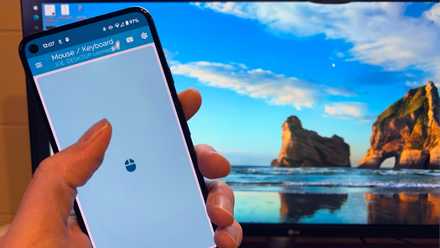
Keyboard integration
You can enable keyboard functionality from the options panels. It allows you to use your phone’s virtual keyboard to type directly into any application on your computer.
You can also tap the three-dot button to access the advanced menu. From here, you can launch system-wide keyboard shortcuts like Ctrl+Alt+Del just by tapping on specific keys. You can also configure key mappings and keyboard shortcuts.
Advanced settings
Here’s a quick look at the advanced settings in the three-dot menu:
- Video codec option to optimize performance based on your connection (AV1, VP8, VP9).
-
Full resolution color coding
-
Smooth scrolling for better navigation
-
Frame rate control from 15fps to 60fps (I usually stick to 30fps for the best balance of responsiveness and performance)
-
System key commands for administrative tasks (as discussed in the previous section)
-
Option to upload and download files between devices
-
Clipboard synchronization between devices
In my experience, the default AV1 codec works best for most situations, but on slower connections I sometimes switch to VP8. I also found that turning off the high-quality color mode reduced lag without significantly affecting usability.
How do I install Chrome Remote Desktop?
It’s easier than you might expect
Of all the different remote access tools I’ve used, Chrome Remote Desktop is probably the simplest and quickest to set up. Open Google Chrome on your Windows PC and go here Remote Access website. and click the download button button (arrow pointing down). This will download the ChromeRemoteDesktopHost setup file.

Remember to use Google Chrome for a seamless experience, not a Chrome-based browser like Edge or the like Brave. I learned this the hard way after troubleshooting connectivity issues with other browsers.
After downloading, run the setup file to install the host. Once the installation is complete, return to the Chrome Browser window and refresh it. You should now see an option asking you to install Remote Access. Turn on > Choose a name for your computer > Set a pin and thank you! You have successfully installed and installed Chrome Remote Desktop on your Windows PC.
Now visit the Google Play Store on your Android device and download it Chrome Remote Desktop program. Open the app and make sure you’re signed in using the same Google account as your Google Chrome browser on your Windows PC.
You should see a list of all remotely accessible devices associated with your account. Select your Windows device from the list, enter the appropriate pin code, and you should have remote access to your Windows PC from your Android phone in seconds.
Why I chose Chrome Remote Desktop
There are other options, but this is the best
I settled on Chrome Remote Desktop for several reasons. It’s completely free to use, includes all the basic features you’d expect from a remote access software, and is very easy to set up. As I just demonstrated, it takes more than five minutes to run it on your Windows PC and Android smartphone.
In addition, it is quite lightweight and does not tax the CPU or RAM. This means you can potentially use a low-end Android phone to access your Windows PC when you’re traveling and need to access a file or run an app. This works great if you have an Android tablet and want to turn it into a Windows tablet.
My Problems with Other Alternatives
I’ve tried other remote access solutions, but each has its drawbacks. TeamViewer works, but I found it laggy with noticeable performance issues. AnyDesk is another great option, but its latest version is super buggy at the time of writing and randomly disconnects in the middle of a connection.
RustDesk is probably the best alternative if you’re looking for an open-source, privacy-focused solution that you can control. However, it is not available on Play Store—you need F-Droidand its setup can be complicated compared to Chrome Remote Desktop.
Keep things simple with Chrome Remote Desktop
Chrome Remote Desktop has become my go-to solution for accessing my Windows PC from my Android phone. It’s safe, reliable, and offers all the features I need without the unnecessary complexity.



