
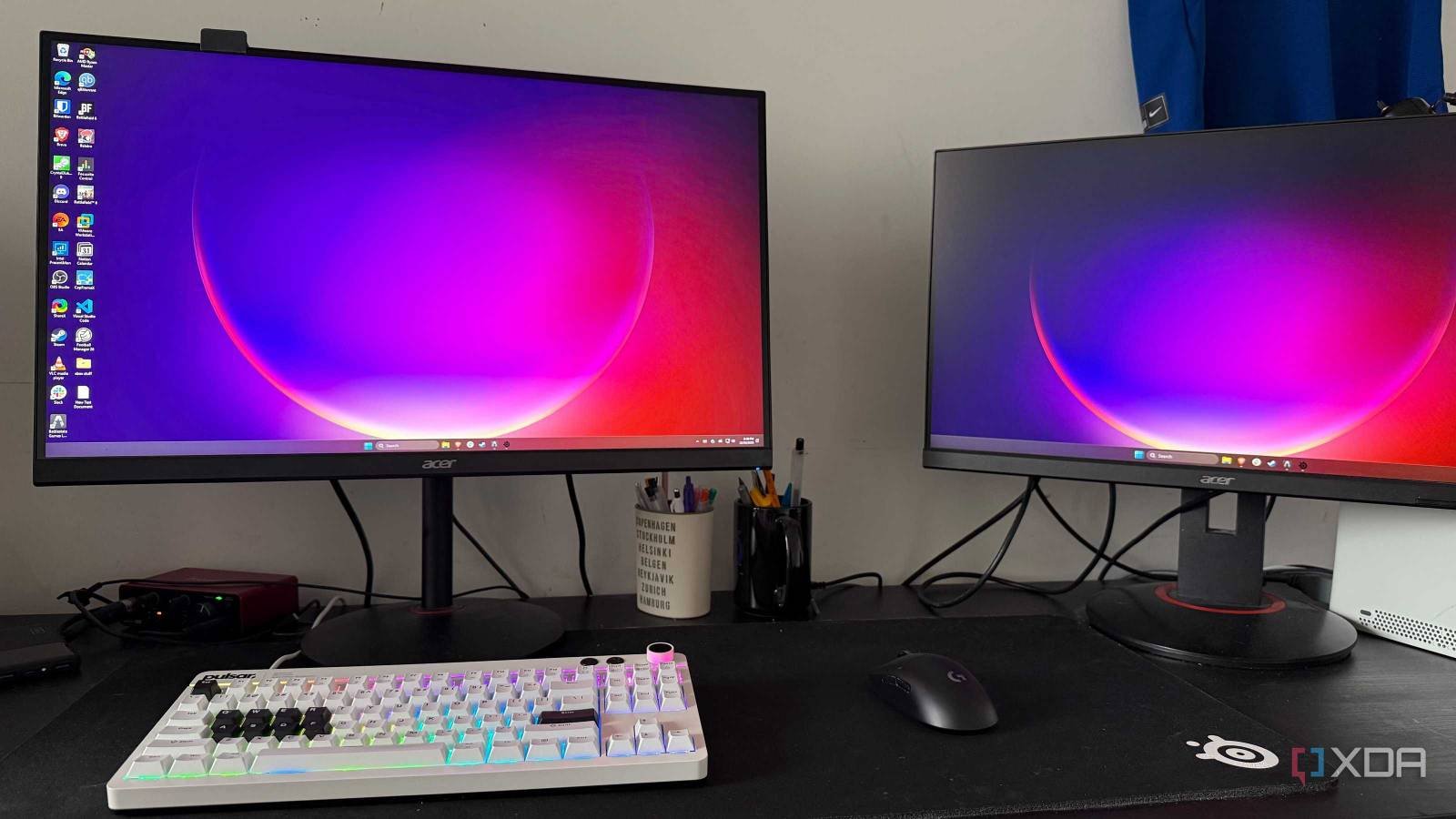
Installing a second (or third) monitor is usually the easiest way to increase your productivity, but it doesn’t take long to realize that Windows still manages a lot of display settings with frustrations.
From losing the cursor to not having proper windows snapping between large panels, the out-of-the-box experience often feels lagging behind the hardware.
Whether you’re a developer running multiple terminal windows or a power user juggling dozens of applications, the right utilities can turn that cluttered desktop into a seamless, high-performance workspace. Let’s break down the main remedies for these common headaches with multiple monitors.

Microsoft PowerToys
The gold standard
The first is Microsoft PowerToys. Honestly, if you’re using Windows without this setup, you’re missing out on a lot. It’s a Swiss Army knife of utilities, but for a multi-monitor setup, Mouse Utilities are the real stars.
They solve the annoying problem of having to physically drag your mouse across miles of screen real estate to press a button on your secondary screen.
I use Mouse Jump all the time. If I’m working on my main monitor and need to navigate to a file in my vertical sidebar, I don’t drag the mouse. i hit Win + Shift + Dand a tiny, scaled-down thumbnail of my entire desktop arrangement pops up next to my cursor.
I just click on the point on the thumbnail that I want to be on and my cursor is right there. It’s faster than shaking the mouse and hoping I don’t miss the target.
CursorWrap is another new addition that I love. It basically closes the gap between the edges of your monitors. But I suggest setting it horizontally only.
In my limited use, I found that having vertical scrolling enabled caused me to accidentally teleport to the bottom of the screen just trying to hit the browser tab at the top.
I highly recommend exploring the other customization options in PowerToys to unlock its full potential.
DisplayFusion
Power station

DisplayFusion is a heavy duty power tool. I’ve found that as soon as you go beyond two monitors with different resolutions and orientations, Windows starts showing cracks. This is where DisplayFusion takes over.
It’s a paid tool, but for the level of control it gives me, it’s easily one of the best investments for my workstation.
DisplayFusion gives me a fully functional taskbar on each monitor. This keeps my main taskbar from becoming a jumbled mess of 20 tabs and makes it easier to switch between apps that are visually grouped together.
It sounds small, but managing wallpapers at different resolutions is difficult in Windows. DisplayFusion allows me to seamlessly spread one large image across all screens or use a wallpaper provider like Unsplash or Flickr for each screen.
It even automatically handles different DPI scaling, so images don’t look blurry or stretched on one screen versus another.
Shining Tray
Single hardware brightness control

Windows is pretty bad at controlling brightness for external monitors. There is a slide on the laptop; on a desktop with three monitors, you’re stuck using the physical buttons on each individual panel.
Twinkle offers a great UI that looks modern. It brings a Windows 11 style switch to the taskbar. When I click it, I get independent sliders for each monitor connected to my computer.
In a night session, I can dim my sidebars, while keeping my main panel bright, with the flick of a mouse.
Since I spend a lot of time in my home lab and write late into the night, I don’t want to manually adjust my screens every few hours. I have built a table within the program. At 8pm all my monitors automatically dim to 20% and stay there until 7am.
The list of features goes on with hotkeys to adjust the brightness of single or all displays, the ability to control contrast and the option to normalize the backlight on all monitors, among others. This is a better version of Monitorian.

Monarch
Software monitor circuit breaker

I saved the most unique tool for last: Monarch. While the other apps I’ve mentioned are all about managing what’s on your screen, Monarch is all about managing the screens themselves.
If you’ve ever had to reach behind your desk to unplug a cable to force Windows to move your icons to its main display, this open source tool will be your new favorite app.
Sometimes I do focus writing and dual monitor setup distracts me. Instead of turning off another monitor, I disconnect it on the Monarch.
I can also save screen layouts as profiles, quickly restore a previous layout, and assign hotkeys for key functions.
Manage your workplace
At the end of the day, a multi-monitor setup is only as good as the software that drives it. While Windows has made improvements with native features like Snap Layouts, you need third-party apps to unlock more productivity.
Well, what are you waiting for? Whether you’re looking to save seconds on your second monitor or simply want a more consistent experience on your panels, these tools are the missing pieces in your professional-grade workstation.



