Back then, huge mainframe computers were equipped with a ton of diagnostic lights. “lights out.” They provided information to the people using these computers about the processes taking place inside the machine and were also used as a diagnostic tool when something went wrong.
Fast forward a few decades and flashing lights have all but disappeared from massive servers and modern mainframes. However, they still live on Ethernet ports and don’t flash randomly.

9/10
- Brand
-
Unifi
- Range
-
1,750 square feet
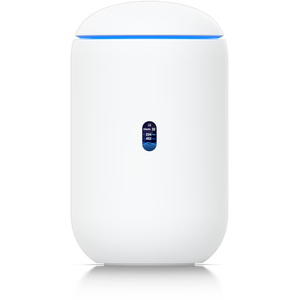
Unifi Dream Router 7 NVR capabilities, fully managed switching, built-in firewall, VLANs and more. is a full-fledged network device that offers With four 2.5G Ethernet ports (one with PoE+) and a 10G SFP+ port, the Unifi Dream Router 7 also has dual WAN capabilities when you have two ISP connections. It includes a 64GB microSD card for IP camera storage, but can be upgraded for more storage if needed. With Wi-Fi 7, you’ll be able to reach a theoretical network speed of 5.7 Gbps when using the 10G SFP+ port, or 2.5 Gbps when using Ethernet.
Many network devices have lights on their Ethernet ports
Wink, wink
Many modern modems, routers, network switchesand motherboards have Ethernet ports equipped with status LEDs. In most cases you have two lights: orange or amber and green. If you look at the Ethernet ports of your network devices when the device is in use, you will see that the active ports have solid or blinking lights.
Of course, not all Ethernet-equipped devices are equipped with Ethernet port lights. For example, many consumer-grade routers don’t have them, but you’ll see them on almost every network switch and most motherboards. Blinking lights, on the other hand, are a common sight on almost every enterprise-grade network equipment.
The reason for these LED indicators is simple: they provide visual signals to indicate whether the connection is active and in good working order, or whether something is wrong. It’s even convenient for home networks because you don’t have to open it admin panel of your router you can determine if your switch is in good working order by checking that everything is working properly and taking a quick look at its LEDs.

On the other hand, notification LEDs are indispensable for system administrators and people working in big jobs data centers. The instant feedback provided by the LEDs alerts technicians to the speed and quality of each connection, and system administrators can often troubleshoot issues remotely just by asking about the status of the notification LEDs.
Also, the other end of the Ethernet cable can be located in another room, in another part of the house, or even in another building if we are talking about larger networks (schools, public buildings, offices, etc.) or enterprise environments such as data centers. Rather than physically finding the other end of the Ethernet cable to troubleshoot, it’s better to have a light that can tell you about problems right away.

- Manufacturer
-
UniFi
- Kind
-
Managed Ethernet Switch
The Unifi Flex Mini 2.5G Ethernet Switch is a fully managed network switch that delivers multi-gig speeds. It works both standalone and with the Unifi Network Controller, making it a versatile choice for your network setup. You get an included USB-C power adapter, though the switch can be powered via PoE+ from an uplink.
Flashing lights is more than a light show
Their flashing patterns have a meaning
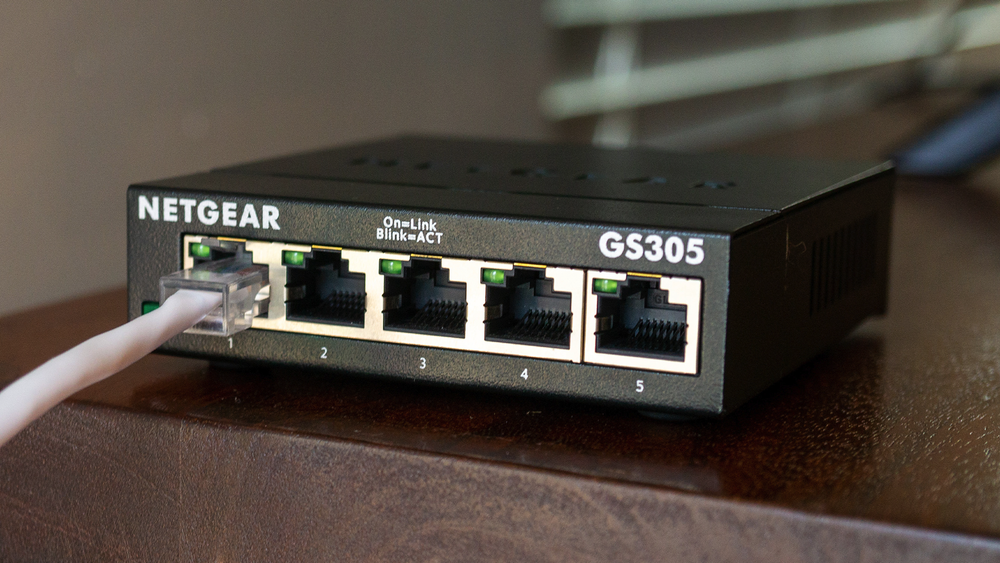
Blinking lights don’t blink randomly now. Different flashing patterns and colors have different meanings. I’ll explain some of these patterns below, but you should be aware that different vendors use different patterns. So, if you want to know what the different flashing patterns mean for your router, switch or any other network equipment, you should visit the device’s product page on the manufacturer’s website or read the user manual.
In general, when it comes to routers and switches, there is usually no light when the cable is connected to the Ethernet port, usually the problem is with the cable, the port itself, or the device on the other end of the connection. If the light is on but there is no traffic, the problem is with the router, switch, server, or another part of the network chain.
Many Ethernet ports have two lights: one for link status and one for network activity. A solid green status light usually means the connection is active and stable. If the status light alternates between green and amber or orange, something may be wrong. If the network activity light is blinking green, data is actively being transferred. A solid or flashing orange or yellow light often indicates a slower negotiated transfer speed, although it can also indicate errors or connection problems on some devices.

Some enterprise network devices can also display individual port load levels through flashing patterns. For example, a faster blink may indicate more traffic activity, while a slower blink may indicate lighter activity. Again, these behaviors vary greatly between manufacturers and device models.
Different manufacturers use different LED notification codes and layouts, so it’s best to read your user manual (or find it online if you don’t have access to a paper version) to find out what the different flashing light patterns mean and what their purpose is for your particular device.
On desktop motherboards, Ethernet port lights can also indicate whether or not they are present WoL (Wake-on-LAN) works or not. For example, if the LED is off when you shut down the computer, WoL is usually not active, but if the light is on, it often means that WoL is enabled and the Ethernet controller is still receiving power in standby mode.

On some motherboards, if the LAN port in question supports multigig operation (eg 2.5Gbps or 10Gbps on high-end boards), a blinking green light usually means the connection is active and data is being transferred, while a yellow or orange light means the port is operating at a lower negotiated speed. This varies by motherboard manufacturer, so be sure to check your motherboard’s user manual to find out how the Ethernet LEDs work.
For example, I have an MSI MAG B550 Tomahawk motherboard that comes with two Ethernet ports (1Gbps and 2.5Gbps), each with two notification LEDs, and the colors on my motherboard’s LAN LEDs actually have different meanings. according to board user manualthe upper LED indicates whether the link is active and whether there is data activity: off means no link, solid yellow means the link is active, and flashing yellow means the link is active and data is being transmitted.
The second LED, the speedometer, uses two colors: green and orange. If the light goes out, the link is only working at 10 Mbps. If the light is green, the switch is operating at 100Mbps for a 1Gbps port or 100/1000Mbps for a 2.5Gbps port. An orange light means the port is running at its maximum supported speed, which is the opposite of how many other motherboards control Ethernet LED colors.
Blinkenlights are often the fastest diagnostic tools for solving network problems
If your router, switch, or motherboard has Ethernet ports equipped with blinking lights, you should read the manual and learn the LED pattern and what the different colors and blinking patterns mean. Instead of digging through the menus on your router’s control panel or the network settings on your computer, you can often tell what’s wrong by taking a quick look at the flashing lights.