
If you want to fix anything in Windows, you need to know where everything is hidden before you do. Display settings are in Settings, but color calibration is in Control Panel. Services reside in services.msc. Scheduled tasks live in taskschd.msc. Group policy It is hidden behind gpedit.msc, which is not even installed in Home editions. In fact, half of the things I might want to do still require regedit and a path I have to search for every time. It’s exhausting.
The Settings app and Control Panel have existed together since Windows 8, and they still disagree about which one owns volume, network, or memory. Microsoft has more or less told us why it can’t get rid of the Control Panel. The reason is pretty funny, but it makes perfect sense given how long Windows has been in development, and the company is afraid of breaking decades-old printer and network drivers.
What I did instead was write my own utility to get around the problem, because I couldn’t find any other programs that really achieved what I wanted or did the way I wanted. This is a single Avalonia window that displays the diagnostics and fixes I touch the most, with the actual work done by PowerShell scripts that I can manually read and edit. this no debloater, nor do I want it to be, but it manages my Windows installation and makes controlling my computer very easy.
This program originally started out as just a PowerShell utility, especially one that I could give to friends who came to me for troubleshooting computer problems. In fact, it’s become a joke in my group of friends: one of them even calls me “Google” on Discord, because half the time it comes to me without looking for it.
However, the PowerShell utility seemed boring and I went down a rabbit hole of reading about WinUI 3 and the mess that ensued. I have heard about Avalonia for a long time and saw that Avalonia 12 was recently released, but unfortunately FluentAvalonia still only supports version 11. Still, it was a fun challenge, and the result is an app that I like the look of, is lightweight, and does exactly what I need it to do. It is completely open source and Available on GitHub so you can download it, run it or even extend it.
One program covers what fifteen panels normally do
All in one place

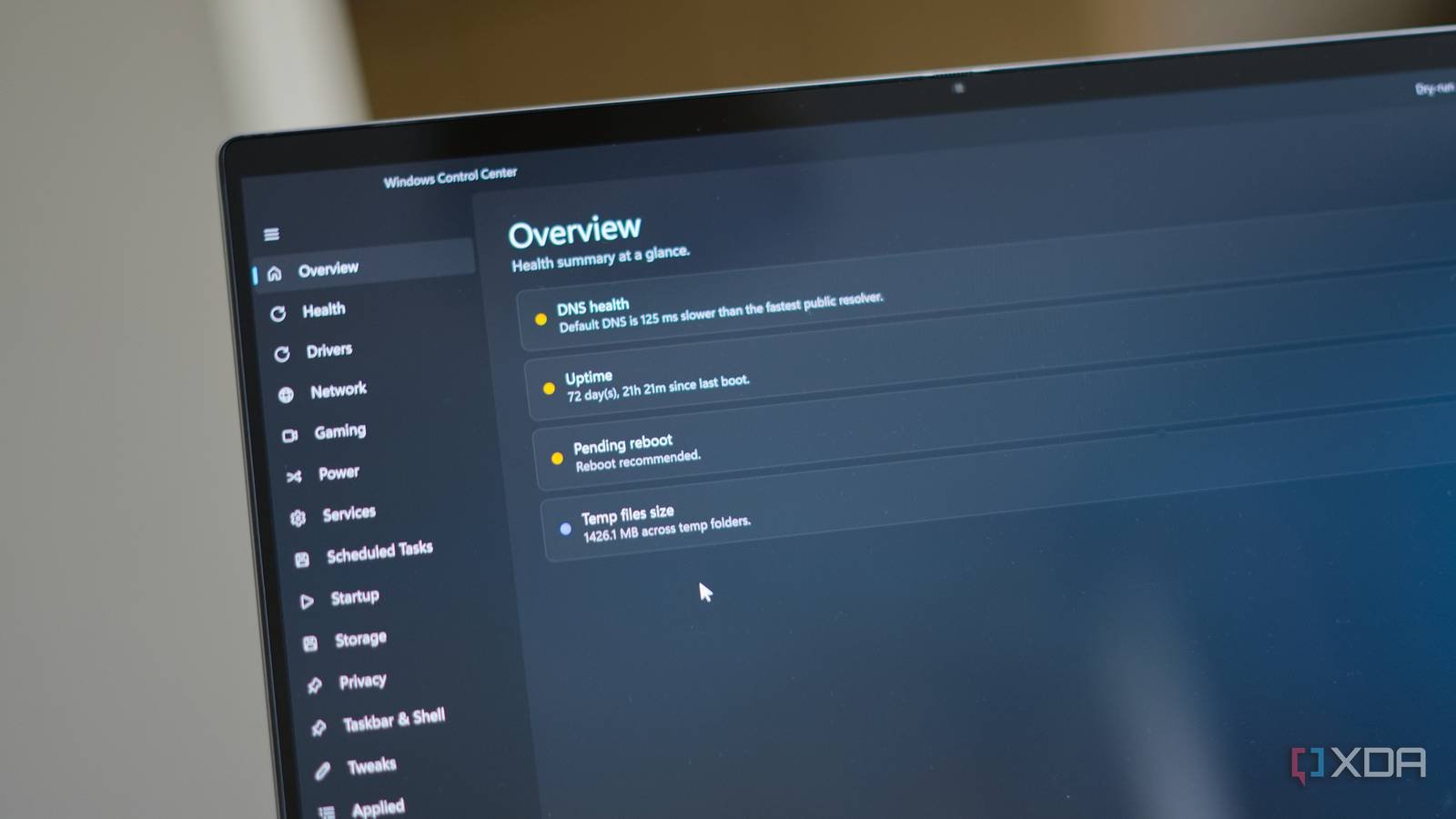
The app drops to an overview page that shows the things I’m most interested in: DNS latency vs. public resolvers, system uptime, whether a reboot is pending, and how much temporary file junk is accumulating. This page exists because these are four things that can tell you a lot about your system right away.
Below the overview, each page in the sidebar maps to a real thing I do in Windows. The Health page shows a series of checks on the health of your computer, such as Windows version, activation status, Secure Boot, TPM, Defender, BitLocker, updates, drive health, CPU, memory, GPU, battery, firewall, and a quick scan of the event log for the last 24 hours. The network page covers DNS health, active adapters, Wi-Fi profile, listening ports on the machine, and a DNS profile switcher that switches between Cloudflare, Google, Quad9, AdGuard, and DHCP without having to go to the network adapters page.

Windows 11 has full pages for services, scheduled tasks, disks, drivers, power plans, game toggles, privacy toggles, and taskbar clutter. Each of these is something I find really useful, and the services and scheduled tasks windows even have a row of Start, Stop, Restart, Enable, Disable, and Run buttons. Both have a filter box at the top, so searching is easy.
The main purpose of this app is to have all the changes I use the most in a lightweight GUI so I can manage basic switches, tweaks and diagnostics from a single window. That way, I don’t need to search for a registry path or cmdlet in PowerShell to change something.
Each check is a PowerShell script and each tweak is JSON
Designed to expand
The C# shell is intentionally thin. Each diagnostic on each page is a .ps1 file under the Scripts/ folder next to the executable. The job of the C# layer is to run the script, read a JSON object from stdout and display it as a colored tile on the corresponding page. That’s all he does.
Each script returns an ok, warning, failure, or info status, a title, a one-line summary, and an array of additional details for an expandable section. I wrote a Write-Result helper so that each script can reuse it, and the runner itself reads stdout from the bottom up and grabs the last parseable JSON line.
What this means is that you can open Scripts/Network/dns-health.ps1 in any editor, see exactly how the latency test works, change the resolver list, and run it again. You can also manually run the script from a PowerShell prompt and get the same JSON that the application gets. There’s no compiled black box doing things I can’t see on my system, and there’s nothing there that I can’t copy and run elsewhere. For example, if you like the scripts but don’t like the look of C# or Avalonia, feel free to take them and put them in a new package. It’s designed so that all scripts can be executed separately from the actual wrapper, so you can too. replace it bandage.
The Game, Privacy, and Taskbar and Shell toggle pages work the same way, but they aren’t even scripts. They read from the JSON manifest at manifest/tweaks.json. Each entry names the path, value name, type, open value, and disable of the registry, and the C# layer generically backs up, applies, rolls back, and handles the dry-run preview of this data.
So adding a new tweak for cases where writing a registry is enough is just a JSON edit like this, no recompilation required:
{
  "id": "shell.show-seconds-in-clock",
  "name": "Show seconds in system clock",
  "category": "shell",
  "registry": (
    { "path": "HKCU\\Software\\Microsoft\\Windows\\CurrentVersion\\Explorer\\Advanced",
      "name": "ShowSecondsInSystemClock",
      "type": "DWORD",
      "value": "1",
      "offValue": "0" }
  )
}
After restarting the program, it will appear with a switch on the Shell page, a backup that runs before writing, a rollback that restores the original value, and a dry run preview that prints the current and next before anything is applied. For anything more than logging, running an executable, calling a CIM class, parsing structured output, I drop the .ps1 into the right folder and tile it instead.
In the future, I plan to make the scripts fully extensible so that you can write your own PowerShell scripts, drop them into the appropriate directory, and display them in the UI. I’m not as familiar with C# as I am with Python or C, and .NET’s XAML has given me a lot of headaches. Registry editing fixes are much simpler to test and sequence than PowerShell scripts, so I focused on those first.
Every change writes a .reg backup before touching anything
It’s easy to return

One thing that really bothers me about these types of tools when working with the registry is the changes they make, how to undo those changes, or sometimes even what in fact they do. This is something I want to get right with this tool for public release. For starters, every script that makes changes accepts the -DryRun switch and returns the same JSON image as the plannedChanges() array. Before you click Apply, the program displays the current and next for each register value that the switch is about to write.
The backup itself is a standard .reg file saved in the same format as Registry Editor’s own exports. It also uses normal hex encodings for DWORDs, binary blobs, extended strings, and multi-strings. The app stores them in %LOCALAPPDATA%\WindowsControlCenter\Backups\ named with a timestamp like 20260515_142530_shell.show-seconds-in-clock.reg, one for each tweak so you know when it was taken and why.

Before writing the new value, the code reads and records whatever was there before. If the value didn’t exist, but the primary key did, the backup writes the string “Name”=- so that rollback cleanly deletes it instead of leaving a trailing state. If the key itself didn’t exist, the backup records it as a comment instead of pretending to have a value to restore.
However, this means that if the program suddenly stops working or something weird happens, or if some other user of this tool decides they don’t want to use it anymore, it’s pointless to undo any registry changes, just double-click any of those .reg files in Explorer and Windows will restore the values without my utility having to do anything. There’s also an in-app undo button that does the same thing, and it just does a reg.exe import on the file. The “Applied” page lists every tweak I currently have enabled, with a button in each row that will call the same .reg file. The ledger that all of this follows is a plain JSON file at %LOCALAPPDATA%\WindowsControlCenter\applied.json, so I can see exactly what state the application thinks Windows is in by opening a file in Notepad.
Nothing about the rollback is locked behind the app, and that was the whole point. I tried to make it as open as possible.
It is not, and never will be, an argument
Nothing against debloating tools, though

I’m not against special debloat tools, and in fact, I wouldn’t install Windows 11 these days. But it’s not, and there are plenty of better suited tools out there that will do it better than I can. I don’t want to reinvent the wheel. Instead, every tweak here is something I’d do manually on a normal Windows installation and believe in a clean rollback, such as Hardware-accelerated GPU Scheduling, the classic right-click menu in Windows 11, hiding the Widgets button, and the default telemetry suite and ad ID toggles.
The whole point of the program is that it is lightweight and minimal, with no settings panel, tray icon, scheduled scans or notifications. In fact, I didn’t even want to build something that needed a native COM helper. When I first started playing with Avalonia a few weeks ago and had the idea to build it, I had some semi-working sound-related tweaks, but I ended up throwing it away. The reason is that I don’t want to be responsible for keeping lightning alive against everything Microsoft does to Windows audio from now on, especially since it’s all undocumented.
There are some useful tweaks you can apply here for a clean install, but this is a tool I keep running in the background to get a snapshot of my current system’s health. I can see if the DNS is weird or if I have too many startup programs and it really is. It won’t replace Settings or Control Panel, but it does make a bunch of tools available in one window, with a written record of what’s changed and how to undo each of those changes if necessary.
Microsoft will keep the Settings app and Control Panel together for as long as it needs to, and that’s fine, I get that, but I don’t need Microsoft’s blessing to put the controls I care about together. I hope this tool is as useful for you as it was for me!



