
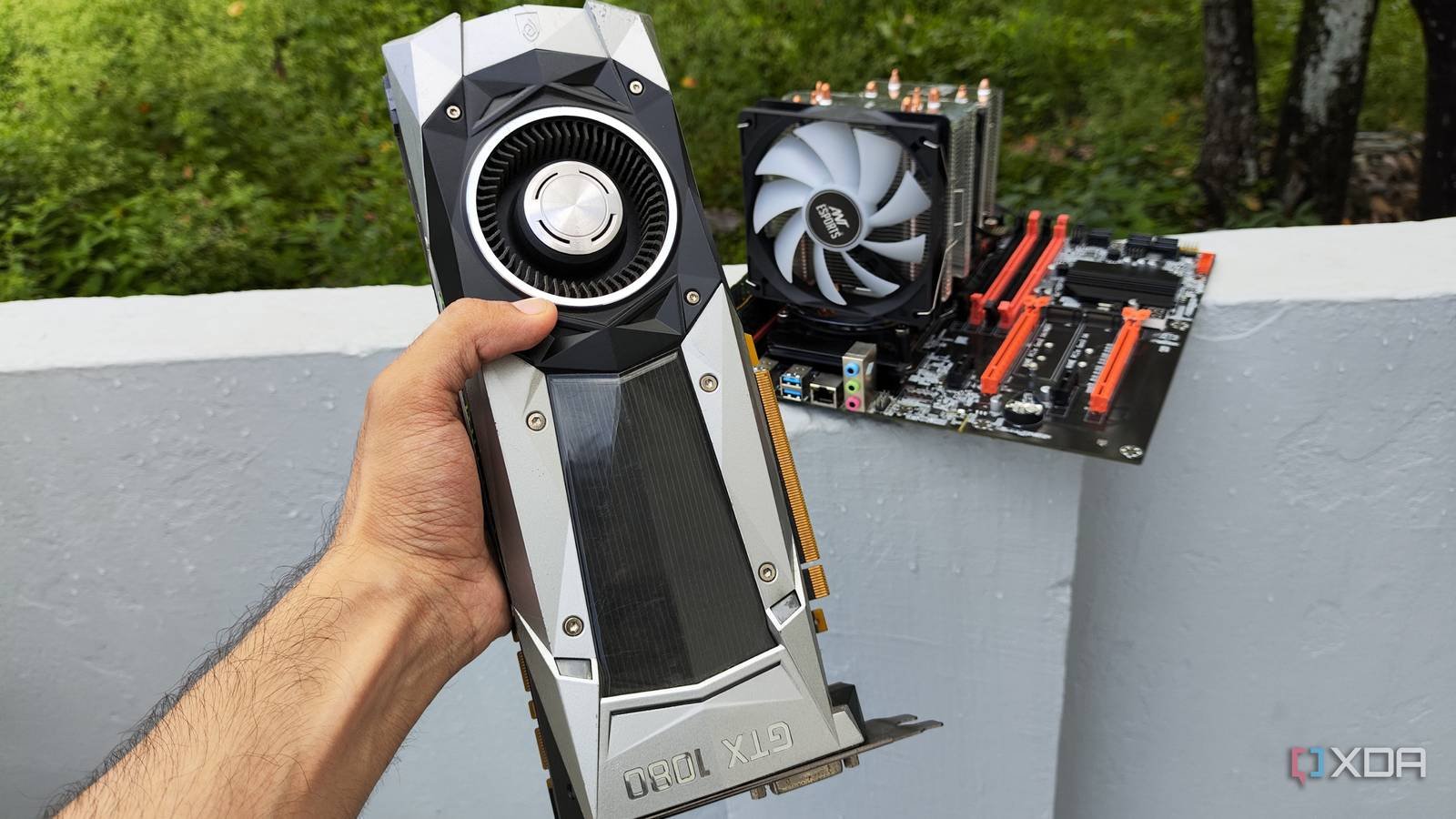
In December 2025, I thought I could stop my Pascal-era GTX 1080 gathering dust by using it to host LLMs at Ollama. Despite some difficulties with the drivers, this experiment turned out quite well, and its usefulness quickly increased when I started to integrate it with my own managed FOSS stack. However, after spending the last few weeks dealing with various providers and LLMs, I realized that the 8B models are not the only ones that will work on my elderly gaming companion. With a little elbow grease, I was able to build a full Linux-based LLM pipeline using repurposed hardware that not only freed me from the API limitations of cloud models, but also ensured that my personal files never left my local network.
I went with the Vulcan version of llama.cpp for this project
Working with the GPU switch was the easy part
Let me make this clear: Ollama is a fantastic local LLM provider, and it’s a solid entry point for newcomers to the self-hosted AI ecosystem. However, it lacks many important settings for hard LLM tasks, takes some time before adding support for newer models, and is a bit weak on the performance front. So I went with llama.cpp, an inference engine that is more customizable and efficient than its beginner-friendly counterpart.
For reference, I was using a host system (Ryzen 5 1600 + 32GB DDR4 memory) for simple Proxmox workloads, so I wanted to run my llama.cpp container as a virtual guest instead of opting for a bare metal setup. Since a virtual machine would introduce more bottlenecks due to the extra layers of abstraction, I quickly spun up LXC with ample memory and system resources. Or at least that’s what I thought at the time. But more on that later.
Since Nvidia discontinued support for my Pascal-era card in December, I installed a slightly older version of the official drivers. I had already done this for my host computer with the following commands, so all I had to do was pass them to the newly configured LXC.
wget https://us.download.nvidia.com/XFree86/Linux-x86_64/580.119.02/NVIDIA-Linux-x86_64-580.119.02.run
chmod +x NVIDIA-Linux-x86_64-580.119.02.run
./NVIDIA-Linux-x86_64-580.119.02.run
Fortunately, the process was as simple as opening it /etc/pve/lxc/100.conf (100 is the LXC ID) through the file nano Editor in Shell of Proxmox node and paste this huge array of parameters:
lxc.cgroup2.devices.allow: c 195:* rwm
lxc.cgroup2.devices.allow: c 235:* rwm
lxc.cgroup2.devices.allow: c 237:* rwm
lxc.mount.entry: /dev/nvidia0 dev/nvidia0 none bind,optional,create=file
lxc.mount.entry: /dev/nvidiactl dev/nvidiactl none bind,optional,create=file
lxc.mount.entry: /dev/nvidia-uvm dev/nvidia-uvm none bind,optional,create=file
lxc.mount.entry: /dev/nvidia-uvm-tools dev/nvidia-uvm-tools none bind,optional,create=file
lxc.mount.entry: /dev/nvidia-modeset dev/nvidia-modeset none bind,optional,create=file
If you continue, you may want to run ls -l /dev/nvidia* and replace 195, 235, and 237 with the device IDs associated with your graphics card.
Then I entered the freshly baked LXC, executed appropriate update running the same set of commands as before to force it to check for new packages and install drivers inside the container. The only difference is that I had to add –no-kernel-modules flag at the end ./NVIDIA-Linux-x86_64-580.119.02.run. Otherwise, the installation process would partially fail.
Compiling Llama.cpp was a job and a half
Unlike the simple installation process for Ollama, I had to spend several hours configuring llama.cpp to detect the correct drivers for my GPU. Initially, I went with the CUDA instance of the tool, as it is the best choice for GPU-accelerated tasks on Team Green cards. Unfortunately, trying to install the CUDA toolkit turned out to be a royal pain. Even when I managed to get it working with great effort, llama.cpp refused to detect it and I had to reload the previous image of LXC to avoid troubleshooting what turned out to be a spaghetti of incompatible packages.
When everything reset to a point right after installing the Nvidia drivers, I decided to switch to the Vulkan side, which seemed easier to install (and troubleshoot). So I installed Vulkan drivers and Cmake tools apt install glslc glslang-tools libvulkan1 vulkan-tools libvulkan-dev spirv-tools build-essential git cmake curl. Then I ran away mkdir -p /usr/share/vulkan/icd.d/ and nano /usr/share/vulkan/icd.d/nvidia_icd.json to enter nvidia_icd.json I pasted the following code (with the same space as the screenshot) to make Vulcan detect my Pascal card.
{
"file_format_version" : "1.0.0",
"ICD": {
"library_path": "libGLX_nvidia.so.0",
"api_version" : "1.3"
}
}
With vulcan and other initial packages installed, I ran git clone https://github.com/ggerganov/llama.cpp to download the llama.cpp repo and point to its directory cd lama.cpp. Finally, I executed cmake -B build -DGGML_VULKAN=ON and cmake –build build –config Release -j$(nproc) it took about 4-5 minutes to set up the tool.
The Gemma-4-26B-A4B works surprisingly well, even on my decade-old card
But I had to change some settings

Remember when I said I wanted to run massive models on my poor Pascal card? This is because I recently came across the Expert Blend models while interning with LLMs and they were an absolute game changer. Instead of loading all the layers from the GPU and causing the token generation speed to crawl at a snail’s pace, TN models allow me to move less-used specialists to RAM with the focus mechanisms remaining on the graphics card. This way I can tap into the superior knowledge base of a large LLM and get a decent token generation speed during my AI tasks.
I went with the Gemma-4-26B-A4B for my first experience, partly because I had heard so much about it, but also because I wanted to try something other than the Qwen3.6.-35B-A3B. So I ran away
So I ran with the model ./llama-server -m “/root/models/gemma-4-26B-A4B-it-Q4_K_M.gguf” -c 65536 -ngl 999 –n-cpu-moe 40 -t 6 -b 2048 -ub 2048 –no-mmap -0.0.0.-0.with –n-cpu-moe 40 flag is a game changer allowing me to run this model on my poor hardware. Within seconds, my llama.cpp server was up and running and I launched its web UI to run some instructions.
However, the token generation rate remained at 2.5-3 t/s, which was much lower than I expected. After some troubleshooting, I realized that I made a fatal mistake when setting up the LXC – I only allocated 8 GB of memory to it, which was not enough to even load the model. Since the GPU’s VRAM and system memory were already full, LLM started reading from memory, causing a massive drop in speeds. After increasing the RAM size to 24 GB and restarting the llama.cpp server, Gemma 4 managed to hit 15 t/s!

It’s a huge improvement over the DeepSeek R1 7B I used to run on Ollama, and it’s especially impressive when you consider that I’m running the whole thing on a GPU that’s 10 years old in 2026. I spent the next hour joining him. Wink, Paperless-GPT (and AI), KarakechiVS Code, Claude Code, Open WebUI and other FOSS programs in my arsenal. I plan to test this setup with Qwen3.6-35B-A3B over the weekend as I’m pretty sure it will work with a few tweaks.
My local LLM pipeline is mostly free (even if you factor in power costs)

Besides preventing big companies from gaining access to my instructions and personal documents, the real benefit of this setup is that I no longer need to pay for cloud platforms. Since I bought this dinosaur machine ages ago, I didn’t have to spend a dime on new equipment.
Plus, my local LLMs don’t contribute anything to my energy costs. My LLM tasks cause my GTX 1080 to spin in bursts rather than sustained workloads. Most of the time these tasks are completed within seconds and my server is idle most of the time. If anything, the only thing I have to worry about is the base system’s idle wattage, which isn’t that high to begin with, since I’ve already optimized its scaling controller and other power consumption settings.



