
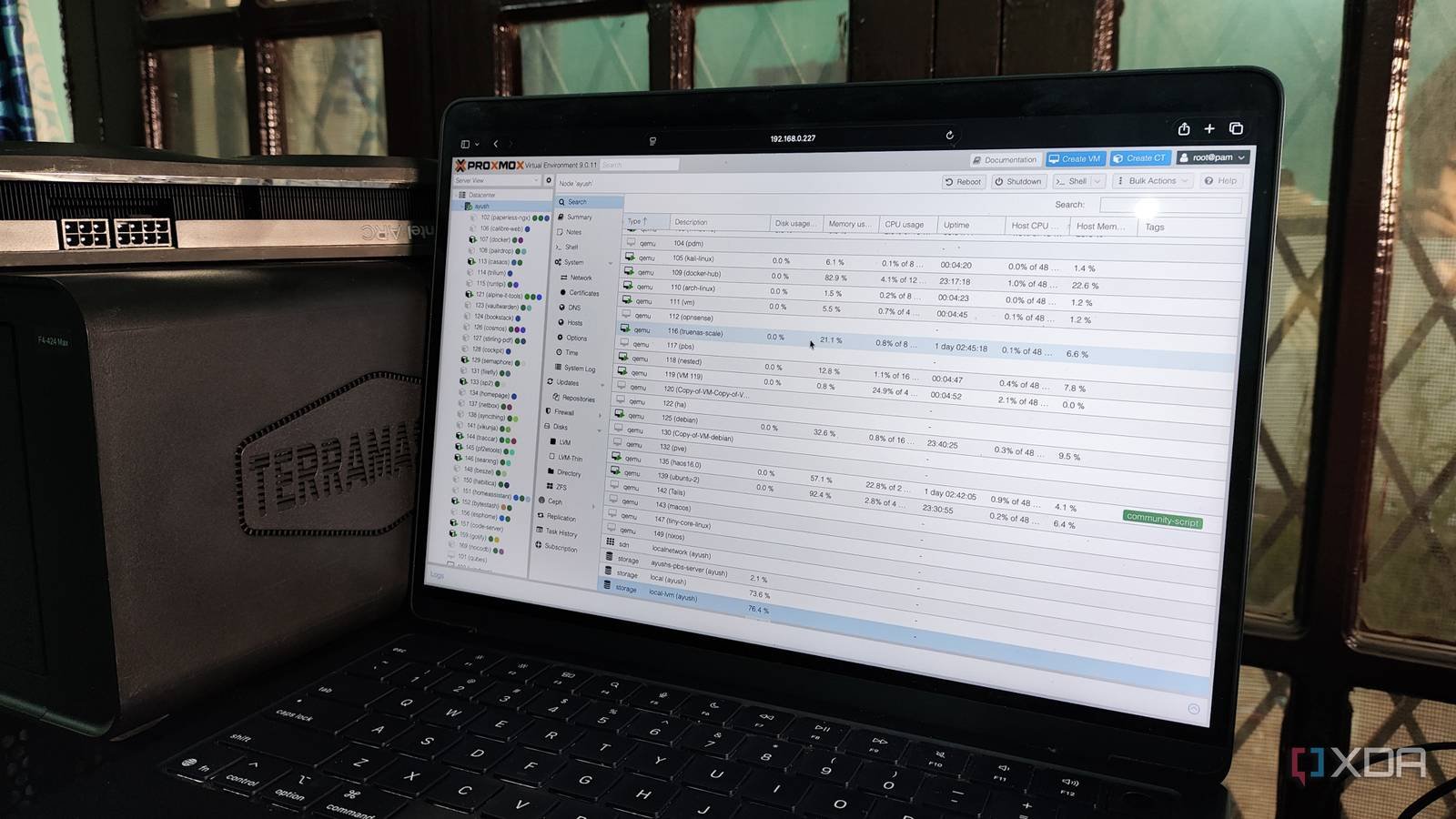
When you try to self-deploy FOSS applications Proxmox serverthere are several ways to install them in Linux Containers. For starters, nothing beats the convenience of running a simple command from the Proxmox VE Helper-Scripts repo and watching your favorite program come to life as an LXC. Alternatively, you can look at the TurnKey templates on Proxmox and use them to spin up LXC armed with all the packages to host the service.
But things get a bit confusing when your preferred application is only available as a Docker image. You could technically install the Docker Engine on LXC and use it to deploy the app, but a built-in setup like this isn’t ideal, especially if you’re following Proxmox’s instructions. This leaves virtual machines as the only viable option. But if you’re on a low-end system, the VM will take up additional CPU, memory, and storage resources. Fortunately, Proxmox 9.1 allows you to pull typical container images from Docker Hub and deploy LXCs with them. But in practice, OCI image support is more complicated than that…
Proxmox can now run LXCs from OCI images
Docker Hub isn’t the only place you can get these images
Before I talk about the installation process, let me make this clear: Proxmox does not use the Docker runtime to spin up containers, even if they are spawned from Docker Hub. Instead, the new update makes it so that your Proxmox server can identify OCI images and convert them to LXC templates (sort of). So the main container runtime is still LXC (and not Docker), but now only works with images that conform to the guidelines set by the Open Container Initiative, rather than the Turnkey templates you can download for your local storage pool.
So you can pull almost any image from Docker Hub, GHCR, OCIR, or even Amazon’s public (and its own AWS-based) ECR gallery on your Proxmox server and expect it to be converted into a template for your LXCs. The best part? Despite the experimental nature of this new feature, the installation process for your OCI image-based LXCs is very simple.
Assuming you’re on Proxmox 9.1, the local storage pool on the PVE node will have a new button called Pull from OCI Registry within the CT templates tab. Clicking on this will open a pop-up window where you can specify the details of the OCI image of your choice. If you do not add the registry name and simply enter the image name in the Reference tab, Proxmox will default to Docker Hub and you will be able to select tags (container versions) for the image. After taking the image, Proxmox automatically converts it to the appropriate LXC template, albeit in .tar format.
Spinning LXC with an OCI image is no different than using a Turnkey template – set credentials, allocate resources, configure network settings, and noise. You have a useful container built from typical Docker Hub images. Note that I said usable, not fully functional, because there are still some issues that need to be ironed out.
You may need to change certain environment variables
And use workarounds to execute shell commands in the container

At first glance, the LXC deployed from OCI images will look virtually indistinguishable from its Turnkey brethren, but once you start examining it, the discrepancies become more noticeable. For example, the Options tab usually contains one or two environment variables, and you’re free to change them if your application needs some additional settings.
Unlike the /sbin/init user process in regular LXCs, OCI image containers will have different initialization processes. Unfortunately, many OCI images will not allow you to access the Shell from the Console tab and will instead simply display the main log of the startup process. But you can access LXC’s shell interface by going to the Shell tab of your PVE node and running pct enter followed by your container ID.
Updating these LXCs is also quite a chore because you have to spin up a fresh LXC with the updated image and map the mounted volumes to it. There is no guarantee that your favorite OCI image will work without requiring major changes to environment variables. If there is high availability clusterthese experimental containers can cause problems in the live migration aspect. I personally have several OCI images that refuse to work on LXCs no matter what I do. But on the flip side, I also have services like Shiori that work fine without requiring any configuration tweaks.
I really hope they implement OCI image support in future updates
Once mature, we won’t need dedicated VMs to run Docker containers

Given the expertise of the talented folks at Proxmox, I have no doubt that they will improve OCI image compatibility in the future. I have a few dinosaur laptops, x86 single-board PCs, and cheap mini-PCs in my home lab, and better support for OCI images would be really helpful for my self-deployment experiments, since I wouldn’t have to rely on the extra resources being freed up just for a Docker-specific VM.



