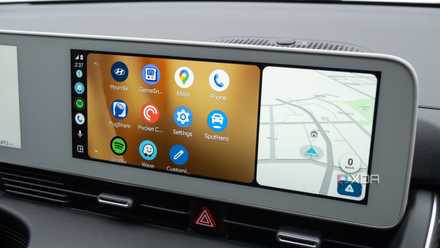
When I get into my car, I plug my phone into one of the available USB ports and Android Auto lights up in the central display after a few seconds. The default screen is perfect, showing Symfonium on the left and a large Waze panel on the right. It’s perfectly fine for shorter journeys, but when we have a trip planned that involves a considerable distance (yes, even in the UK there are longer drives), I take a few minutes before setting off to configure Android Auto.
Simply plugging in and running can cause issues with the experience not being optimized for the driver. No matter how well-optimized the UI is, navigating your Jellyfin server on a narrow screen that’s imprecise at best can be a recipe for disaster when you’re trying to focus on the road ahead. If everything isn’t optimized from the start and your phone isn’t connected to a power source, Android Auto can (and often will) completely drain it from 100% to zero. So I spend a few minutes before leaving to get everything right.
Customize the app launcher
Focus on important things

Before heading out for the first time (whether it’s a new phone or a fresh reset), I’ll open the Android Auto settings right on the phone and customize the launcher. I need Waze front and center with Symfonium on the side as a long distance companion. Octopus Energy’s Octoverse is also great for me to quickly go to a nearby charger and charge up if needed. Everything else can and does fade into the background. If I don’t need it for a driver, it won’t be on the home screen.
This is not just personal preference. Getting the launcher according to your exact needs and requirements ensures maximum security as you will spend as little time as possible focusing on the screen. Even looking at the center console distracts from the road. Think of a CPU doing background work and you ask it to do something else. It can complete it quickly, but the process will take a quick hit as the processor tries to juggle the commands. The same goes for your brain behind the wheel.
I like having navigation front and center, voice second, and communication after that. Although I mostly use Waze, I enjoy having Google available in case something goes wrong with my navigation.
Waze is the best thing since sliced bread
Speed traps, potholes and smart navigation
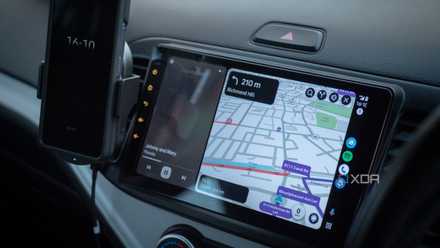
I use Waze on every drive. Not because I’m unfamiliar with the local routes and need some form of help getting anywhere, but because it’s good at providing alerts from the community. Speed traps, potholes, road closures and other road issues can cause headaches. For longer trips, I make sure Waze is configured and ready to go before driving the vehicle. I will check the route options, add the required stops and check the distance to the destination.
Waze and other satellite navigation tools offer a variety of options to fine-tune the experience, such as avoiding highways, toll roads, congestion zones, and other navigation settings. Google Maps can even estimate battery usage and add charging stops for eligible EVs, which has been invaluable for our travels. So it’s more about typing in a destination or using voice commands when setting off, and carefully planning the route to make it as stress-free as possible.
The best part about using Waze is that you can stay informed without looking at the screen. Alerts are broadcast over speakers, with any music temporarily muted to ensure nothing is missed. As not all roads in the UK are re-marked, I find it useful to check that I’m not going over the speed limit even on roads where I don’t know the speed limit.

Turn off the sound as much as possible
Do you really need WhatsApp notifications?

Another thing I always do with Android Auto is silent notifications for almost all apps and contacts except my wife. This minimizes group notifications. There is nothing worse than having WhatsApp start up in the middle of your trip. Not only is it distracting, but it can also cause the music to suddenly stop playing, which is terrible when it’s one of my favorite tracks. Android offers several ways to achieve this, including Do Not Disturb and notification controls.
Whether you use Google Messages, WhatsApp, Signal, Telegram, or another messaging app, it’s worth checking out how to set them up on the go. Don’t think for a second that Android Auto is reading your messages while you’re driving. Taking the time to listen and understand what the message is saying can be just as distracting. If it’s urgent, they’ll try to get through a few times, and everything else can probably wait until your next stop.
Increase the fight
Symfonium is the king of music streaming

I love Symfonium. This is one of my favorite smartphone apps by a clear mile. It’s reliable, handles offline playback, can connect to multiple sources simultaneously, and is just a joy to use. Before heading out, I check what playlist or genre of music I want to be on Stream from our Jellyfin server and let the app do the rest. This usually means I have to plug my phone into the car to charge, as streaming through spotty patches and navigating through Waze can absolutely drain battery life.
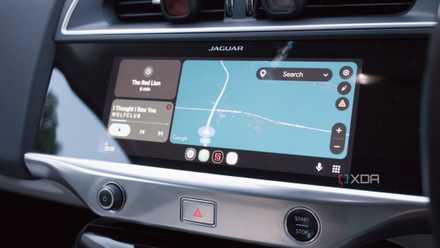
Android Auto changes how apps are displayed and allowed on the screen multiple supported apps will be displayed at the same time it’s fantastic. Symfonium and Waze are two excellent examples of useful apps that provide a wider view and a compact view of what’s playing for front-seat navigation in Android Auto. Playback can be adjusted by my passenger, though not via the steering wheel controls, and it all works together beautifully to make the most of the available screen real estate.
Making Android Auto yours is easy
Spend some time before you set off to really tailor Android Auto to your needs and requirements. Not all are the same, so it’s nice to see some cool customization options and settings to completely change how the software works on your car. It didn’t take long for me to realize that Android Auto was a far superior alternative to the car’s own infotainment software. What do you do before a long drive?